
Overview
The COMPUSHIFT controllers are capable of using different unit systems for speed, temperature, pressure and other items. Depending on your personal preference, you can set these for metric, imperial, US customary units or any combination thereof. However, there are some important differences between how the units systems work on the app and the handheld display on the COMPUSHIFT Sport and COMPUSHIFT Pro. If you are trying to change unit systems on your app, please read this page: Setting Measurement Units on the CS Setup App.
Setting Display Units
Unlike the setup app, the COMPUSHIFT Display uses unit settings that are bound to the controller and display. This means that you can set the units on the display one way, and set the units on your app a different way. In fact, you can actually set the units for the display using the CS Setup app.
From the CS Setup App
-
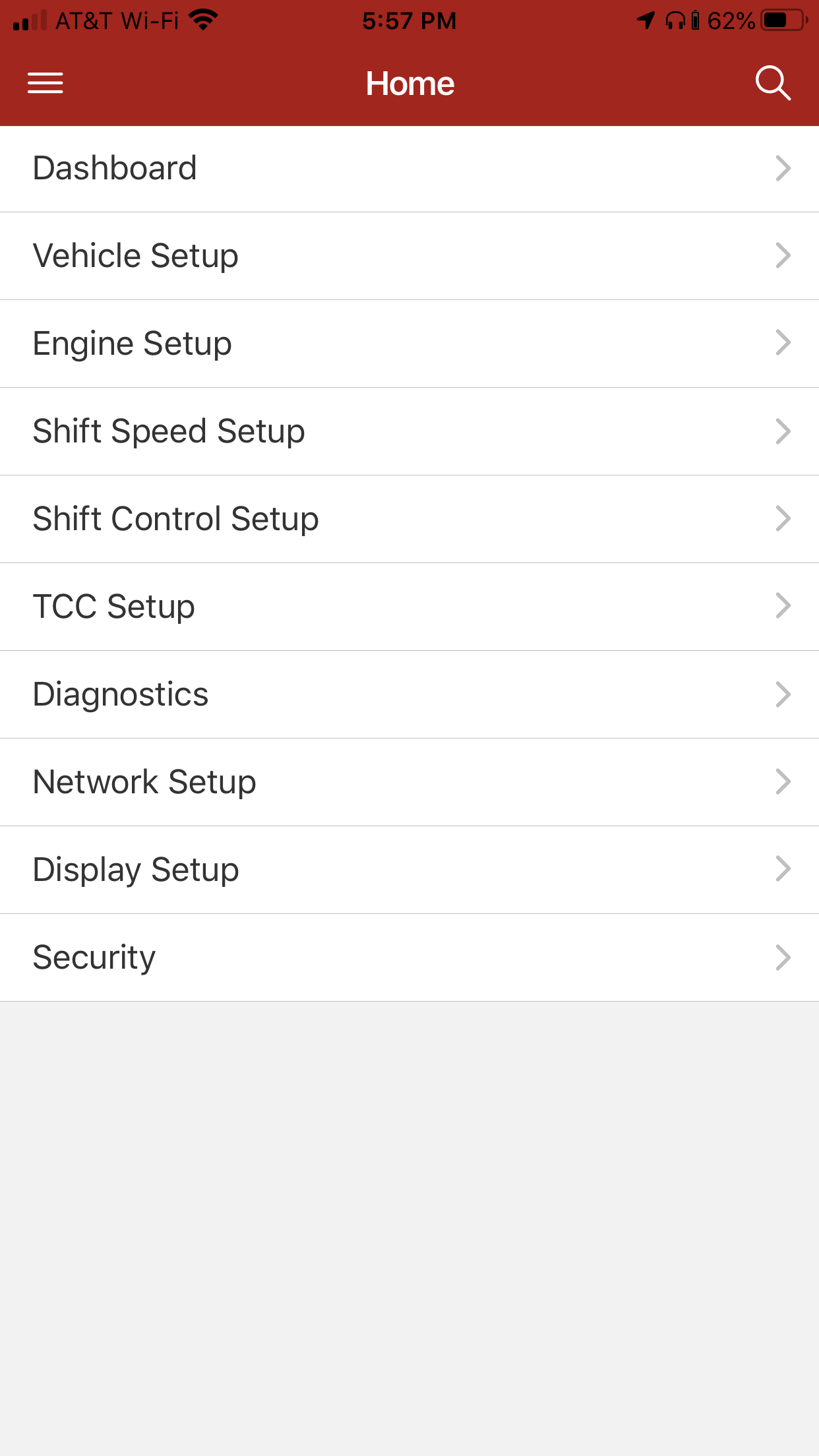
Start at the home screen.
-
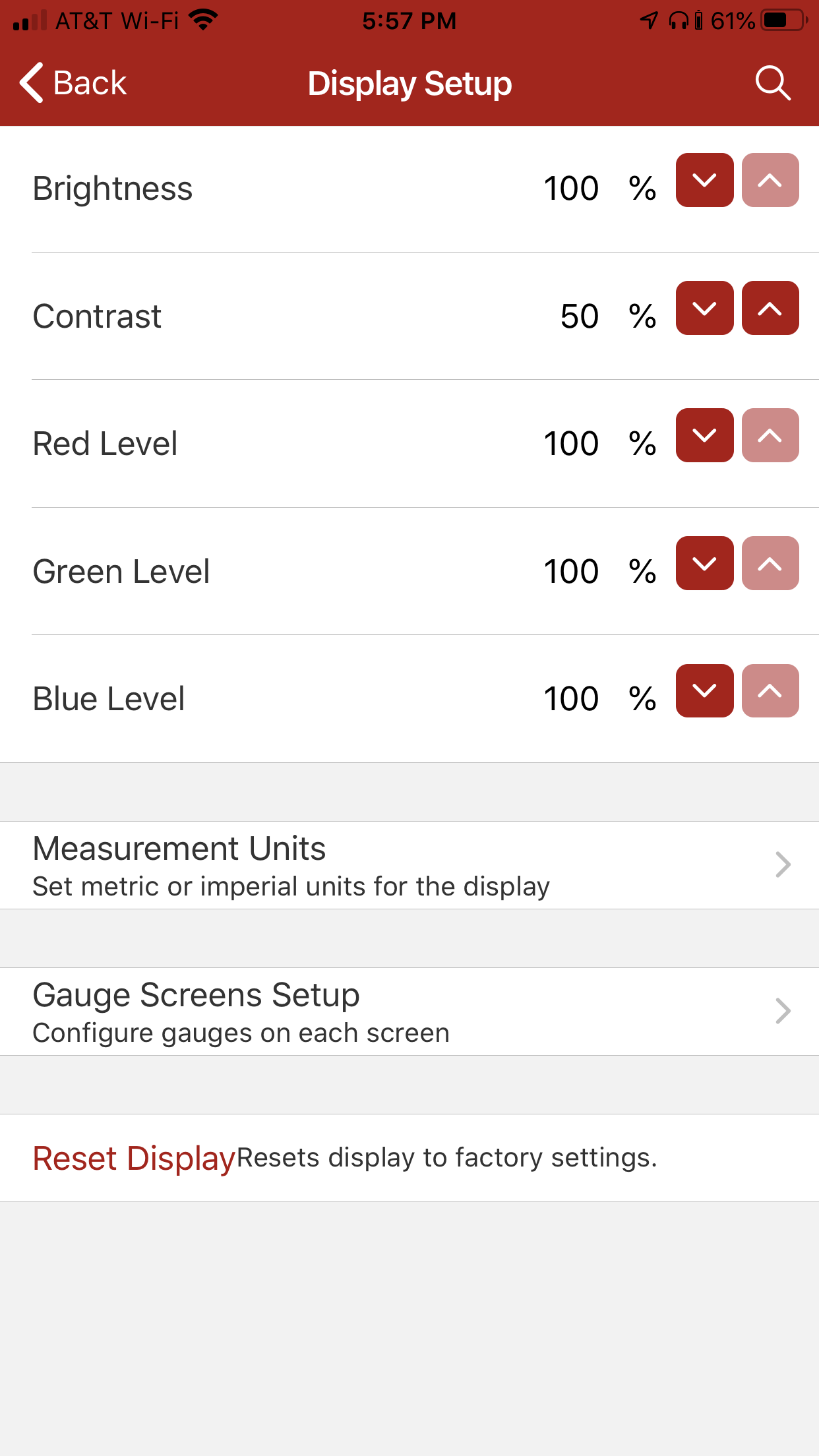
From the home screen, select the “Display Setup” menu.
-
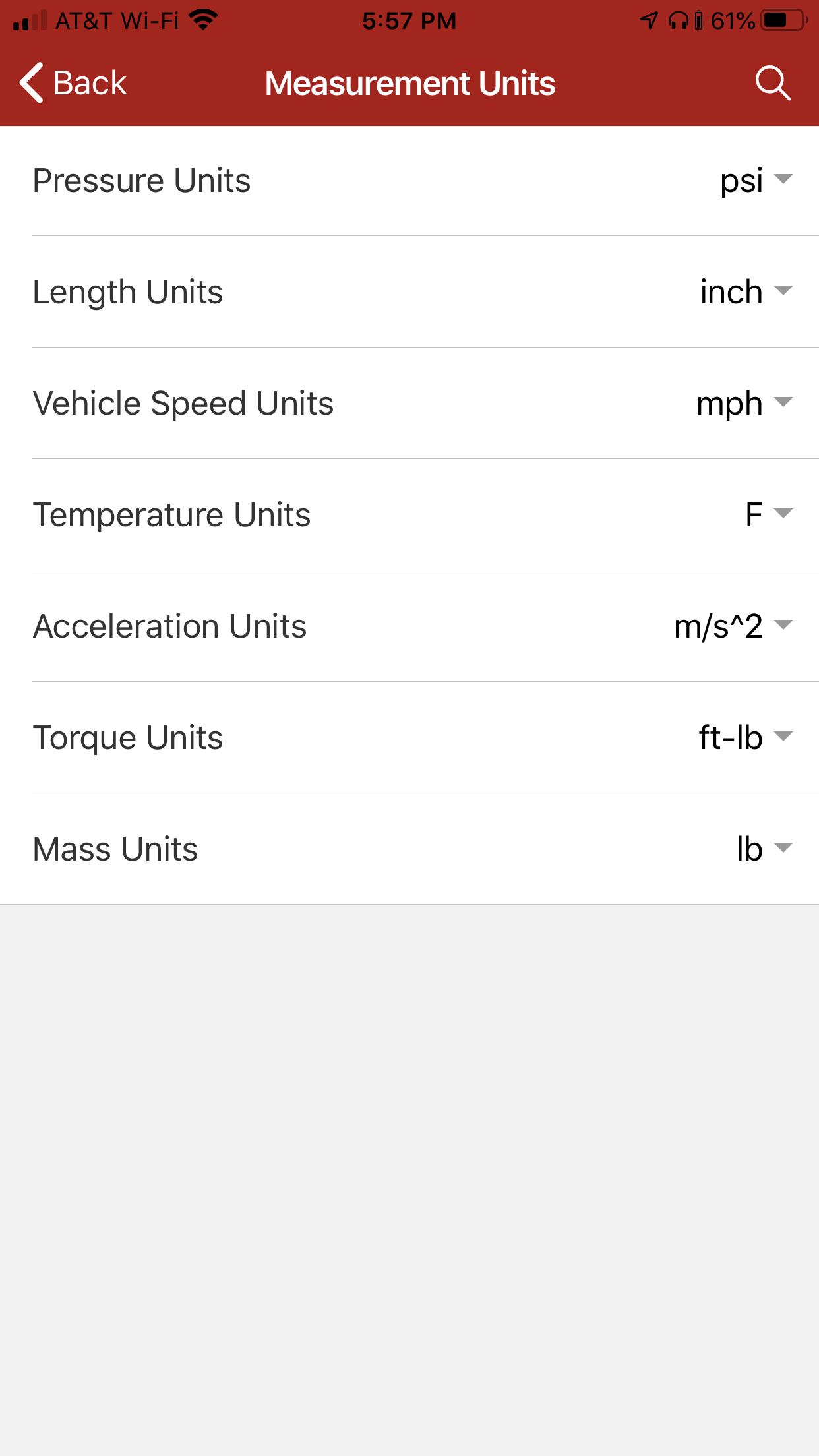
From “Display Setup”, select the “Measurement Units” menu.
-
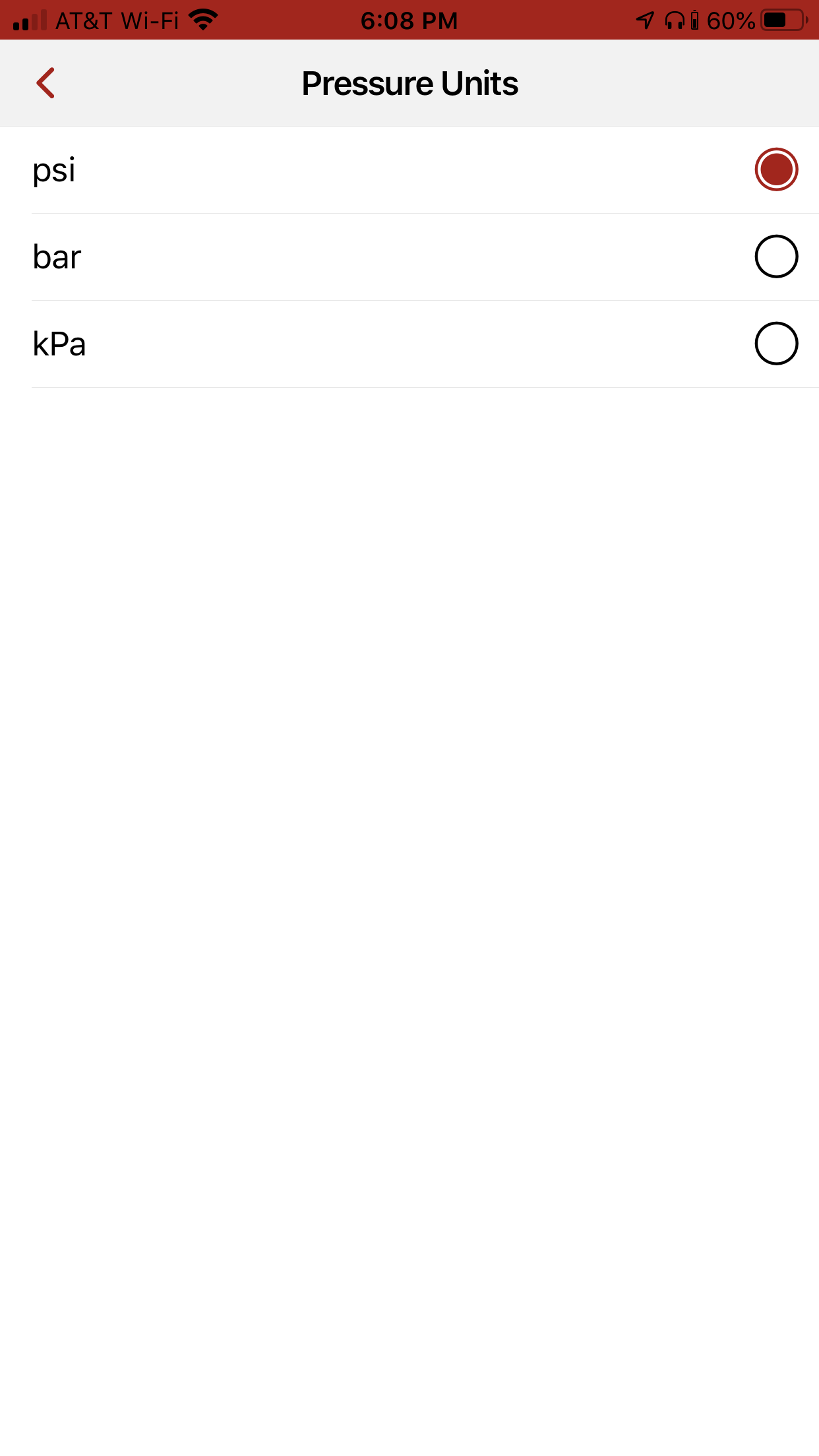
Choose units as needed on the “Measurement Units” menu.
From the COMPUSHIFT Display
The process on the COMPUSHIFT Display is the similar to the app.
-
Use the lower left arrow button to navigate to the top of the menu structure.
-
Use the left and down arrows to navigate to the “Display Setup” menu. Press the center button to enter the menu.
-
Use the left and down arrows to navigate to the “Measurement Units” menu. Press the center button to enter the menu.
-
Use the left and down arrows to select the measurement you wish to change. Press the center button to enter the menu.
-
Use the up and down arrows to change the units. Press the center button to select the unit of choice.
Related Information
- Installing the COMPUSHIFT Transmission Pressure Sensor Kit
- Reflashing a COMPUSHIFT Mini 2 Controller
- Connecting Reverse and Neutral Safety Relays to a COMPUSHIFT Controller
- Connecting COMPUSHIFT to Holley Sniper EFI or Holley TerminatorX
- Connecting COMPUSHIFT to Holley EFI / Racepak
- Connecting COMPUSHIFT to AEM ECU's
- Setting Measurement Units on the CS Setup App
- Preserving Calibration When Changing Engine or Transmission Type
- Connecting COMPUSHIFT to Cummins R2.8 CM2220
- Installing a Surge Suppressor on COMPUSHIFT
- Reflashing a COMPUSHIFT Sport or COMPUSHIFT Pro
- Using the HGM CSII Flash Tool
- Connecting COMPUSHIFT to Chrysler HEMI Crate Engine
- Adding an ECU to a CAN Bus Network
- Setting Measurement Units on the COMPUSHIFT Display